Developers
Add Phone Calls to Your AI Agent with MCP (Claude Code and Codex)
Connect Claude Code, Codex or Grok to RizzDial over MCP: the add command, the browser approval, how to verify the connection, prompts that do real work, and when to use the REST API instead.
By James Hill ·
Your coding agent already reads your repo and runs your tests. This adds one more thing it can reach: your phone system. After a one-time connection, Claude Code or Codex can list your AI voice agents, check which numbers are available, pull recent call transcripts, and start or pause a voice campaign, without you opening the dashboard.
No code to write for the connection itself. Everything below was verified on 2026-09-24 against the RizzDial MCP docs, the Claude Code CLI docs and the Codex CLI docs.
Answer first: RizzDial runs a remote MCP server with browser sign-in. In Claude Code, run
claude mcp add --transport http rizzdial YOUR_RIZZDIAL_MCP_URLthenclaude mcp login rizzdial. In Codex, runcodex mcp add rizzdial --url YOUR_RIZZDIAL_MCP_URL. Approve access in the browser when the tab opens, then confirm withclaude mcp listorcodex mcp list. The connection acts with your own account permissions, so confirm anything that changes data.
What connecting actually buys you
Without MCP, work means opening the dashboard and clicking through screens. With MCP, you stay in the client you are already typing in and describe the task. Your agent handles the calls to RizzDial.
The practical difference shows up in the tasks that span two systems. "Read the failed onboarding calls from last week and open a ticket for each objection I have not answered in the docs" is three tools and a judgment call. That is the shape of work MCP is for.
There are two RizzDial connections and they do different jobs. One reads and changes your account and needs your login. The other is read-only over the documentation and needs no account at all. Most teams run both.
Before you connect
The RizzDial MCP server is available to RizzDial customers. If you are not one yet, book a call to get API access. If you are, open the MCP page (Connect MCP) in your dashboard: it shows the exact URL for your account, with a tab per client and a Copy button. Copy the command from there rather than typing the URL from a blog post, this one included. Placeholders below stand in for what that page gives you.
You also need the CLI itself installed. "Command not found" on the first step means the Claude, Codex or Grok CLI is not on your machine yet.
Claude Code
Two commands. The first registers the server, the second authenticates it.
claude mcp add --transport http rizzdial YOUR_RIZZDIAL_MCP_URL
claude mcp login rizzdial
The second command opens your browser. Log in to RizzDial and approve the connection on the screen that appears. Approving mints a token tied to your user, which is what the client uses from then on.
Inside a Claude Code session, the /mcp command shows connected servers and lets you handle authentication interactively if you would rather not use the login subcommand.
Codex
One command, because Codex starts the authorization flow itself the first time it needs it.
codex mcp add rizzdial --url YOUR_RIZZDIAL_MCP_URL
Codex opens the browser when it first needs to authorize. If you want to trigger that step explicitly rather than waiting for it, codex mcp login rizzdial starts the OAuth flow for a server that supports it. Codex keeps its MCP configuration in a TOML config file, so a server added this way persists across sessions.
Grok and the claude.ai connector
Grok takes the same shape as Claude Code:
grok mcp add --transport http rizzdial YOUR_RIZZDIAL_MCP_URL
For claude.ai rather than a terminal, the MCP page in the dashboard can open Claude's add-custom-connector screen with the URL already filled in. Same approval screen, same per-user token, no terminal involved. That is the path to hand a non-technical teammate.
Approving in the browser
The approval screen is not a formality, so read it. It is the point where you grant a client the ability to act as you inside your account. Approve on a machine you control, in a browser signed in to the RizzDial account you intend to use, and deny if a prompt appears when you did not just run a connect command.
If the browser never opens, re-run the connect or login command for your client. If your agent says it cannot reach RizzDial, open the MCP page, copy the command again, and reconnect: the usual cause is a URL copied by hand or a client that was set up against a different account.
Verifying the connection
Do not take the first successful-looking answer as proof. Check the client's own view of what is registered.
claude mcp list
claude mcp get rizzdial
For Codex:
codex mcp list
Add --json to the Codex command if you want machine-readable output to assert on in a setup script.
Then verify at the account level with something that can only be answered from your data, such as asking it to list your AI agents. A client can be registered and unauthenticated at the same time, and that failure mode looks like a confidently wrong answer rather than an error. If the names that come back are not yours, stop and re-check which account you approved.
To remove a server:
claude mcp remove rizzdial
Prompts that do real work
These map to capabilities the RizzDial docs list for a connected account. Say what you want in plain language; the client picks the tools.
- "List my AI agents and tell me which ones have no outbound number assigned."
- "Create a new outbound agent for lead follow-up. Write the prompt so it confirms the appointment time twice and never quotes anything."
- "Which phone numbers are available in the 312 area code?"
- "Show recent call history for the Renewals agent and summarize the three most common objections."
- "Pause the voice campaign called Aged Leads, then tell me how many contacts were left in it."
- "Start the Q4 Solar Follow-up campaign." (Confirm this one before you let it run.)
Two habits make the answers trustworthy. Ask for counts before bulk changes: "how many contacts would that affect" turns an unnoticed mistake into a number you can sanity-check. And ask for the source: a client that can name the agent and date range behind a summary is reading your data, while one that cannot may be filling gaps from memory.
Letting a coding agent build the integration for you
The Right use of a coding agent here is not running your dialer by chat. It is writing the integration you were going to write by hand, from the spec rather than from guesswork.
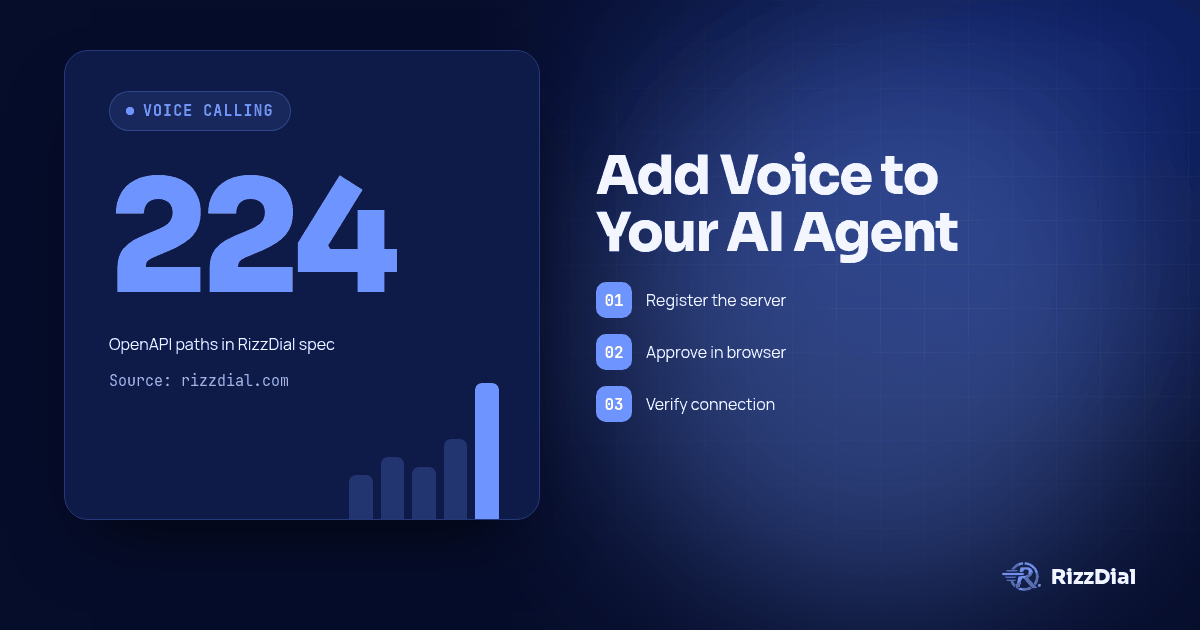
RizzDial publishes an OpenAPI 3.0.3 spec with 224 paths at https://app.rizzdial.com/api/docs/spec, with a browsable Swagger UI at https://app.rizzdial.com/api/docs. Point your agent at the spec and constrain it to what the spec actually contains:
Fetch https://app.rizzdial.com/api/docs/spec and treat it as the only
source of truth for this task.

Build a Python module that:
1. Lists AI agents and returns agent_id plus name.
2. Fetches an agent's call endpoint, then places an outbound call to an
   E.164 number through the URL it returns.
3. Reads call history filtered by agent_id and start_date.

Rules:
- Use only paths and methods that appear in that spec. If a capability
  is missing, say so instead of inventing an endpoint.
- Copy field names character for character from the spec, including
  spellings that look like typos.
- Base URL https://app.rizzdial.com, auth header
  Authorization: Bearer YOUR_TOKEN read from an environment variable.
- Write the request and response types from the spec schemas, then
  write tests against recorded fixtures, not against live calls.
The last two rules matter more than they look. Field names in any real API include at least one that reads like a mistake, and an agent that "corrects" it ships a request the server rejects. And an agent that tests against live calls will dial someone while it iterates.
For the walkthrough of the resulting code, including the Claude tool-use loop and a human confirmation before dialing, see Build an AI Calling Agent with Claude and the RizzDial API.
Safety: the connection acts as you
This is the part to read twice. An MCP session authorized with your login has your permissions, and its changes are real. "Clean up the old lists" can delete lists. The running your dialer page draws the line by reversibility: creating lists, tagging contacts, drafting templates, building agents, searching numbers and pulling reports are safe to delegate, while deleting anything, bulk contact edits, buying numbers and starting a live campaign should be confirmed first.
Four practices worth adopting on day one:
- Use a dedicated user for automation. A separate RizzDial user for MCP means you can see what it did and cut it off without disturbing anyone's day-to-day access.
- Confirm writes explicitly. Tell your client, in its project instructions, to state the intended change and wait for a yes before anything that deletes, buys, or goes live.
- Revoke from the dashboard. Access is revocable where it was granted. If a laptop goes missing or a contractor rolls off, revoke there rather than hoping the client forgot.
- Treat the approval prompt as a decision. A connection request you did not initiate is a reason to deny and go look at why.
Calls placed through any of this are still calls. The FCC's February 2024 declaratory ruling treats AI-generated voices as "artificial" voices under the TCPA, so prior express consent applies; see the ruling on fcc.gov and our TCPA and FCC compliance notes. A contact marked DNC in RizzDial is honored at the contact level. None of this is legal advice.
When to use MCP, and when to use the REST API
| MCP | REST API | |
|---|---|---|
| Suitable for | Exploration, one-off tasks, work a human is watching | Scheduled jobs, product features, anything unattended |
| Auth | Browser approval, token tied to your user | Personal access token, or OAuth 2.0 for apps |
| Determinism | The client chooses the tools each run | You choose the calls, same every run |
| Where it lives | Your laptop or chat client | Your servers |
| Failure mode | A confident answer from the wrong account | An HTTP status code you can branch on |
The short version: MCP when a human is in the loop, REST when software runs alone. Reaching for MCP inside a cron job means accepting a nondeterministic plan for a job that should do the same thing every night. Reaching for the REST API to answer "which numbers are flagged" means writing a script for a question you will ask once.
The productive pattern is both, in order. Explore over MCP until you know which calls you need, then have the coding agent write those exact calls against the spec, and run that.
Frequently asked questions
Do I need to write any code to connect?
No. One command per client plus a browser approval. Code comes in only when you want the API directly, which is covered in the Claude tutorial.
Which clients are supported?
Claude (Claude Code CLI and claude.ai as a custom connector), Codex and Grok, per the Connect MCP docs. Any client that speaks MCP over HTTP with OAuth follows the same pattern.
See Give Your AI Agent a Phone for setup guides covering Claude, ChatGPT, Codex, Cursor and Grok.
How do I confirm it actually connected?
Run claude mcp list or codex mcp list to confirm the client sees the server, then ask a question only your account can answer, such as listing your AI agents. Both checks, not one.
Can the connection delete things?
Yes. It acts with your permissions. That is why the guidance is a dedicated user, explicit confirmation on writes, and revocation from the dashboard when access is no longer needed.
Can I connect from claude.ai instead of a terminal?
Yes. The MCP page can open Claude's add-custom-connector screen with the URL filled in. Same approval, no CLI.
Does the docs connection need a login?
No. It is read-only over the documentation pages and needs no account, which is why it suits anyone helping you set up.
What if my agent gives a confident but wrong answer?
Check which account you approved and whether the client is authenticated, not just registered. Ask it to name the agent and date range behind any number it reports.
Connect the client, approve once, then work in plain language. Keep writes behind a yes, and let the spec, not the model's memory, write your integration.
Get API access or book a call to get your account connected.
For the next step in this workflow, review the ai voice agent workflow guide and discuss implementation through the AI calling integrations.
About RizzDial
RizzDial is the AI outbound sales workspace for teams on GoHighLevel. Power dialing, AI voice agents, SMS automation, and CRM workflows in one platform. Book a demo.