Developers
Connect Cursor to Your Phone System with MCP
Connect Cursor to RizzDial over MCP: the mcp.json entry, browser approval, the verify steps, safe prompts, and when the REST API is the better call.
By James Hill, Founder, RizzDial ·
Open your RizzDial dashboard, go to the MCP page, and copy the URL it shows for your account. Add it to .cursor/mcp.json as {"mcpServers":{"rizzdial":{"url":"YOUR_RIZZDIAL_MCP_URL"}}}, save the file, then open Customize in the Cursor sidebar to confirm the server shows as connected. The first time Cursor's agent calls a RizzDial tool, it opens a browser tab for you to sign in and approve access. After that you can tell Cursor to list your AI agents, check call history, or search for a number, in plain language, while it is sitting in the middle of your codebase.
Everything below was verified on 2026-10-12 against the Cursor MCP docs and RizzDial's own MCP page.
Why is this worth doing in Cursor specifically?
Cursor already has your repository open: your API client, your webhook handler, your test suite. Wiring RizzDial into the same window lets the agent editing your call handling code also check what it is writing against. Ask it "does the agent I just created in code match what's actually configured in RizzDial" and it can check both sides without you tabbing to a dashboard.
The useful pattern in an editor is read, then write code, then verify against the live account. A one off question like "which numbers are free in the 312 area code" barely needs an editor at all. A task like "read the OpenAPI spec, write a typed client for the call history endpoint, then show me three real rows so I can check the types match" is the kind of work Cursor already does well, now extended to your phone system.
What do I need before I connect?
The RizzDial MCP server is available to RizzDial customers. If you are not one yet, book a call to get access. Once you are, open the MCP page in your dashboard. The tabs there are built for Claude, Codex and Grok, so there is no Cursor tab with a ready made command. Copy the URL from whichever tab shows it and paste it into your own mcp.json by hand, in the shape below.
You also need Cursor itself, and a RizzDial account with at least one AI agent or number set up, otherwise your first few questions come back empty.
How do I add the server to mcp.json?
Cursor reads MCP servers from two files, per the Cursor docs: ~/.cursor/mcp.json in your home directory for tools available in every project, and .cursor/mcp.json inside a project for tools scoped to that repository. Pick the global file if you work across several codebases and want RizzDial everywhere. Pick the project file on a shared repository, so a teammate opening the same folder does not inherit your personal connection.
The entry itself is short:
{
  "mcpServers": {
    "rizzdial": {
      "url": "YOUR_RIZZDIAL_MCP_URL"
    }
  }
}
Paste the URL from the dashboard MCP page in place of the placeholder and save the file. Cursor supports Streamable HTTP with OAuth for remote servers like this one and runs the sign in step itself, so there is no token to paste anywhere. A server that needs a bearer token in a header instead can pull it from your shell with ${env:NAME} syntax, such as "Authorization": "Bearer ${env:MY_TOKEN}", which keeps the token out of the file.
How do I keep the file out of git?
If you used the project scoped file, add .cursor/mcp.json to your .gitignore before you commit anything else in that session. RizzDial's own entry has no secret in it since the authorization lives in a browser approval rather than a header, but the file is still personal: it can list servers and tokens that belong to you, not to whoever clones the repository next.
How do I approve the connection?
The first time Cursor's agent reaches for a RizzDial tool, it opens your browser to a sign in and approval screen. Log in to the RizzDial account you want this connection bound to and approve it there. That approval is what hands the token to Cursor, and from then on the connection acts with that account's own permissions.
Treat that browser tab like a request to install a browser extension: read what it is asking, do it on a machine you control, and close it without approving if it opened on its own.
How do I verify the connection works?
Open Customize in the Cursor sidebar. The RizzDial server should be listed there with a toggle next to it, switched on. That confirms Cursor registered the server; it does not confirm the connection is actually authenticated and working.
For that, ask Cursor something that can only be answered from your account, such as "list my AI agents" or "how many numbers do I have assigned right now." If the names or counts that come back are not yours, the connection is pointed at the wrong account or never finished the OAuth step, and you should disconnect and reconnect from the MCP page.
If a tool call fails or seems to hang, open the Output panel with Cmd+Shift+U and pick MCP Logs from the dropdown. That shows the raw requests and responses, faster than guessing from the transcript.
How does Cursor decide what it can run on its own?
Cursor asks for approval before using an MCP tool by default, and clicking the arrow on that prompt expands the exact arguments it is about to send. Run Modes sit on top of that and control how much Cursor handles without asking, the same system it uses for terminal commands. On an enterprise plan, an admin can also set an MCP Allowlist under Team Settings, MCP Configuration, limiting which server URLs and tools anyone on the team may connect.
What prompts actually do real work?
These map to what a connected account can actually do, so say them in plain language and let Cursor pick the tool:
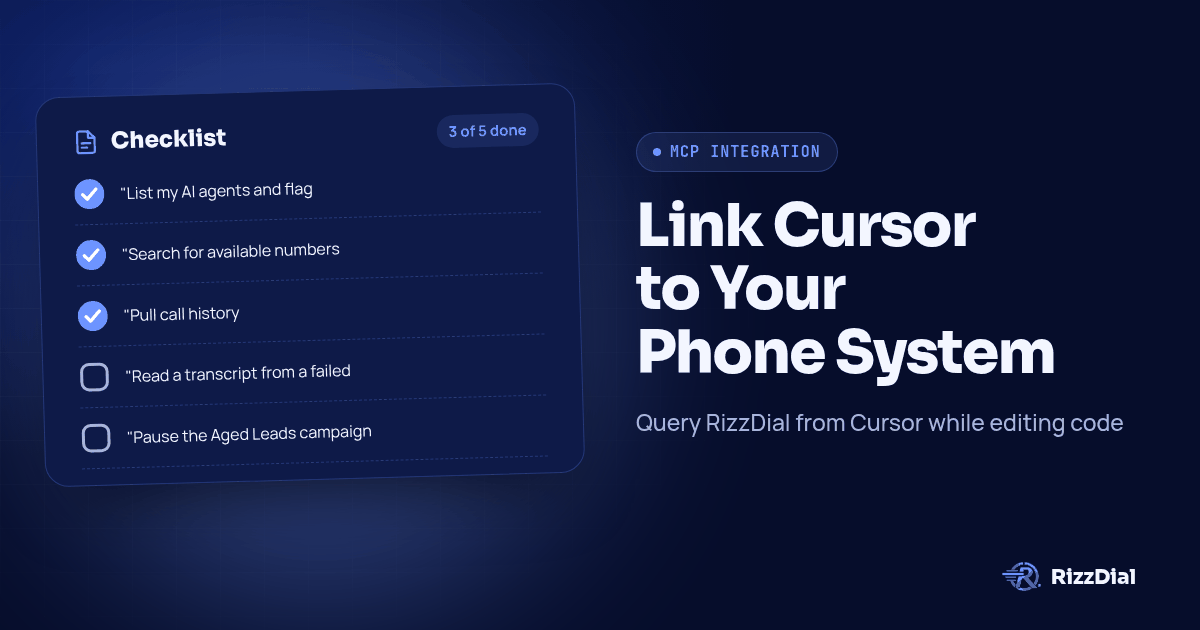
- "List my AI agents and flag any that have no outbound number assigned."
- "Search for available numbers in the 312 area code and show me the first five."
- "Pull call history for the Renewals agent from last week and summarize the outcomes by disposition."
- "Read a transcript from a failed call in that list and tell me what the caller actually objected to."
- "Pause the Aged Leads campaign, then tell me how many contacts were left in it when you paused it."
- "Start the Q4 Follow Up campaign." (Confirm this one before you let it fire.)
Ask for a count before anything that touches more than one record. "How many contacts would that affect" turns a vague instruction into a number you can check. And ask it to name its source: an answer that cites the agent and date range it pulled from is reading your account, while one that cannot is probably filling in from memory.
Can Cursor write the REST integration instead?
MCP suits exploring an account and running one off tasks while a person is watching. It is a poor fit for anything that needs to run the same way every night, because the model chooses which tools to call each time rather than you choosing the exact calls. For that, have Cursor write the integration against RizzDial's REST API instead.
RizzDial publishes an OpenAPI 3.0.3 spec at https://app.rizzdial.com/api/docs/spec, with a browsable version at https://app.rizzdial.com/api/docs. Point Cursor at the spec and have it generate a client right inside your codebase, matched to your existing style and tests:
Fetch https://app.rizzdial.com/api/docs/spec and treat it as the only
source of truth for this task.

Write a module in this repo that:
1. Lists AI agents and returns agent_id and name.
2. Fetches an agent's call endpoint, then places an outbound call to an
   E.164 number through the URL it returns.
3. Reads call history filtered by agent_id and a date range.

Rules:
- Use only paths and methods that appear in that spec. If something is
  not in the spec, say so instead of guessing an endpoint.
- Copy field names exactly as the spec has them, including any that
  look like typos.
- Base URL https://app.rizzdial.com, auth header
  Authorization: Bearer YOUR_TOKEN read from an environment variable.
- Match this repo's existing test setup and run against recorded
  fixtures, not live calls.
That last rule matters. An agent testing against live calls will dial someone while it iterates on your code, and that is not a mistake you want to explain. For a walkthrough with a human confirmation step before a call goes out, see Build an AI Calling Agent with Claude and the RizzDial API. The setup steps for Claude Code and Codex specifically are in Add Phone Calls to Your AI Agent with MCP.
How do I stay safe knowing this connection acts as me?
An MCP session approved with your RizzDial login carries your permissions, and whatever it does is real. "Clean up the stale leads" can delete leads. A few habits help.
- Use a separate RizzDial user for the Cursor connection if you can. That gives you a clean activity trail for what the agent touched, separate from your own day to day actions.
- Read the approval prompt's arguments before clicking yes, especially on anything that deletes, buys a number, or starts a live campaign.
- Add project instructions that require a stated plan before a write. Telling Cursor, in its rules file, to describe what it is about to change and wait for a yes keeps the habit in place.
- Revoke from the RizzDial dashboard, not just locally. Removing the server from
mcp.jsonstops Cursor from trying, but access granted through that browser approval is revoked where it was granted.
Calls placed this way are still calls that go to real phones. The FCC's February 2024 declaratory ruling treats AI generated voices as artificial voices under the TCPA, so prior express consent rules apply the same way they would to any other outbound call; see the ruling at fcc.gov. None of this is legal advice, and a contact marked do not contact in RizzDial should stay marked that way regardless of who or what triggered the call.
If the same agent setup also needs to send a text instead of placing a call, RizzDial's messaging counterpart, Beam, documents its own MCP connection for iMessage, worth knowing if your workflow needs both channels.
MCP or the REST API: which should I use inside Cursor?
| MCP in Cursor | REST API | |
|---|---|---|
| Good for | Exploring an account, one off questions, work you are watching | Code that runs unattended, on a schedule or in production |
| Who picks the calls | The agent, per instruction | You, in the code Cursor writes |
| Auth | Browser approval, bound to your user | Personal access token or OAuth client |
| Where it runs | Your machine, inside the editor session | Wherever your service runs |
| What fails look like | A confident answer from the wrong account | An HTTP status code your code can handle |
The pattern that works is both. Explore your account over MCP until you know which calls you need, then have Cursor write those calls against the spec and run that instead. Reaching for MCP inside a nightly job means accepting a different plan every run for a task that should do the same thing every time it fires.
What do people ask about connecting Cursor to RizzDial?
How do I connect Cursor to RizzDial?
Open the MCP page in your RizzDial dashboard and copy the URL it shows for your account. Add a server entry named rizzdial to .cursor/mcp.json with that URL, save the file, and open Customize in the Cursor sidebar to confirm the server is listed and turned on. Cursor starts the OAuth flow the first time a tool call needs it.
Do I need to keep .cursor/mcp.json out of git?
Yes if it holds a header with a token in it. RizzDial's entry is just a URL with OAuth, so the file itself has nothing secret in it, but add .cursor/mcp.json to .gitignore anyway so nobody on the repository accidentally connects your account or overwrites your server list with theirs.
Does Cursor ask before a RizzDial tool runs?
By default, yes. Cursor asks for approval before using an MCP tool, and clicking the arrow on that prompt shows the exact arguments before you approve. Run Modes control how much of that Cursor handles on its own versus asking you each time.
How do I confirm the connection is actually working?
Open Customize in the sidebar and check that rizzdial shows as connected. If a tool call fails or hangs, open the Output panel with Cmd+Shift+U and select MCP Logs from the dropdown. Then ask something only your account can answer, such as listing your AI agents, and check the names that come back are actually yours.
Can the connection place a call or delete something without me noticing?
It can do anything your RizzDial account can do, because it acts with your permissions. Cursor's approval prompt is your checkpoint for that: read the arguments before you click approve, use a dedicated RizzDial user for automation if you can, and revoke access from the dashboard if a machine goes missing.
Add the server to mcp.json, approve once in the browser, and the agent sitting in your editor can read your RizzDial account the same way it reads your repository. Keep the approval prompt meaningful, keep writes behind a stated plan, and move anything that has to run unattended onto the REST API instead. See the series hub for the setup on other clients, or check the MCP page for the exact URL for your account.
Get API access or book a call to connect your account.
How can RizzDial help with your calling workflow?
RizzDial is the AI outbound sales workspace for teams on GoHighLevel. Power dialing, AI voice agents, SMS automation, and CRM workflows in one platform. Book a demo.