Developers
Connect Grok Bot to Your Phone: Calls Over MCP
Add RizzDial to Grok Bot by chat, no config file. Approve the connect card, verify with a read only call, then run a daily callback workflow.
By James Hill, Founder, RizzDial ·
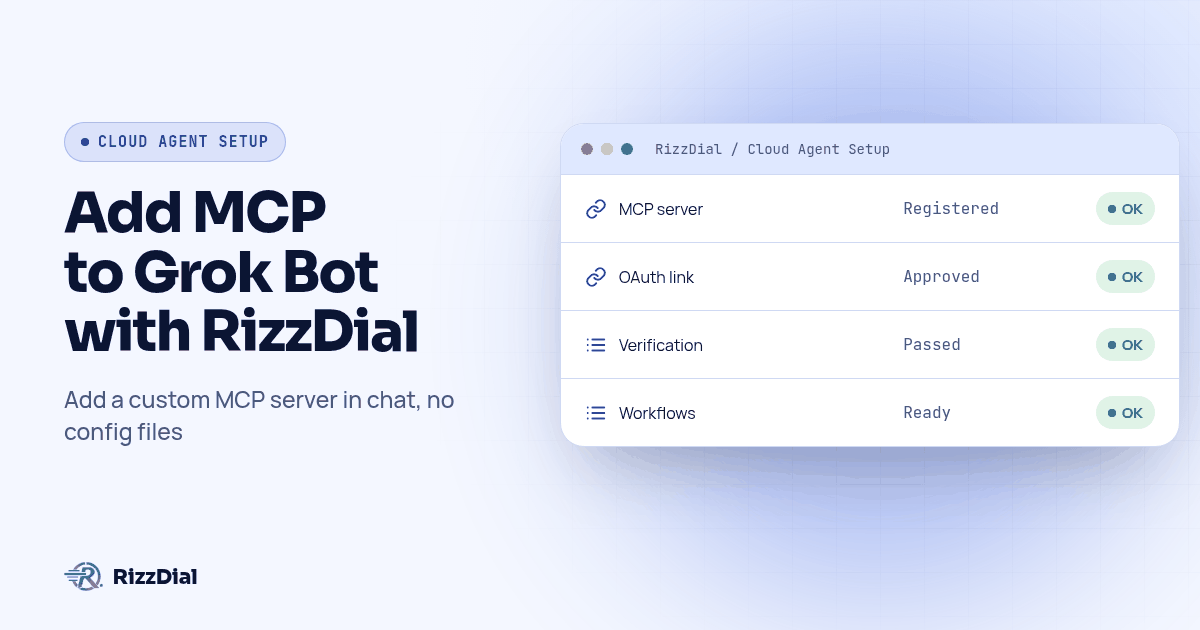
Open the Grok tab on the Connect MCP page in your RizzDial dashboard, copy the MCP URL, then tell Grok Bot in chat to add a custom MCP server named rizzdial at that URL. There is no settings form for this, so the chat instruction is the setup. Grok Bot confirms the name and URL, posts a connect card, and once you authorize it in your browser you can ask it to list your AI agents, pull call history, or check which numbers are free, straight from the conversation.
Everything below was verified on 2026-10-12 against a staff answer on the Cursor forum about Grok Bot custom connectors, Composio's guide to adding MCP servers to Grok Bot, and the Grok Bot plugins and MCP guide on grokbotwiki.com.
What is Grok Bot, and why does the setup look different from other agents?
Grok Bot runs on a cloud computer rather than on the laptop in front of you. That single fact decides almost everything about how RizzDial has to connect to it. A server on your own network, or anything answering on localhost, is invisible to a bot running somewhere else entirely. RizzDial's MCP server already speaks Streamable HTTP over a public URL, which is exactly what a cloud agent needs, so the connection works, but only because the server lives on the public internet and not because Grok Bot reached down into your machine.
This is also why Grok Bot has no phone of its own. It has a phone app for chatting with you, and that is a different thing from placing an outbound call. Calls, numbers, and voicemail detection belong to RizzDial; texting over iMessage belongs to a separate connection through Beam. Grok Bot is the agent that drives both once you wire them in.
Do I need a config file to connect RizzDial?
No, and this is the part that trips people up if they have set up MCP on another client first. Claude Code has a CLI command. Cursor has mcp.json. Grok Bot has neither. According to the staff answer on the Cursor forum, there is no settings form for custom servers at all. You tell Grok Bot what you want in a chat message, and it handles the registration on its own side.
It can be as plain as this:
Add a custom MCP server named rizzdial at YOUR_RIZZDIAL_MCP_URL
Grok Bot repeats the name and URL back to you before it adds anything, which is your chance to catch a typo in the URL before it becomes a broken connection you have to debug later. Say "custom server" when you ask, since Composio's guide notes that Grok Bot also offers catalog plugins such as Gmail and Slack through a separate Connect Apps flow in the sidebar, and a vaguer request can land you in that flow instead of the one you wanted.
Where do I get the URL to give it?
Open your RizzDial dashboard and go to the Connect MCP page. It shows the MCP URL for your account with a tab for each client it supports, including one labeled Grok. Copy the URL from that tab rather than typing a URL from this page or any other blog post, since the one that actually works is the one tied to your account.
If you are not a RizzDial customer yet, book a call to get access first. You also need an AI agent or a number already set up on the account, otherwise your first few verification questions come back empty rather than wrong, which looks the same from inside the chat.
What happens when I approve the connect card?
Once you send the add instruction, Grok Bot posts a connect card in the chat if the server uses OAuth, which RizzDial's does. Click Authorize, sign in to RizzDial in your browser, and approve the connection on the screen that appears. That approval is what ties the connection to your account and your permissions, not to Grok Bot in general.
Read that screen the way you would read a request to install a browser extension. Approve it on a device you control, while signed in to the RizzDial account you actually want connected, and close it without approving if a connect card shows up when you did not just ask for one. New tools become available starting with your next message after you authorize, per the forum answer, so there is no restart step to remember.
How do I verify the connection actually works?
A registered server and a working connection are not the same claim. Grok Bot can confirm it added rizzdial to its list of servers while the OAuth step silently failed, and the failure mode there is a confident sounding answer built from nothing, not an error message.
So verify with a question that only your real account can answer:
List my AI agents.
Show me my last ten calls.
Both of those are read only, so there is nothing to approve or undo if something is off. If the agent names or call records that come back match your dashboard, the connection is live and pointed at the right account. If they do not match, or Grok Bot says it has no way to answer, go back to the Connect MCP page, copy the URL again, and repeat the add instruction. Repeating it back usually catches a URL that was copied by hand instead of from the tab.
What does a real workflow look like once it is verified?
That read only check above is also the shape of the most useful daily habit: ask before you authorize anything that writes. A workflow that fits that pattern:
Pull yesterday's calls, flag the ones that were not answered, and draft
a callback list with the contact name and a good time to try again
based on when the original call was placed. Do not start anything yet,
just show me the list.
Grok Bot reads yesterday's call history, filters down to the no answers, and hands you a list to scan before anything happens to a single contact. From there, a second, separate instruction decides whether that list becomes action:
Start a callback campaign for everyone on that list, using the
Renewals agent.
Running those as two messages instead of one is deliberate. That first message does nothing but inform you. That second message is a write, and it should only fire after you have actually looked at the names on the list and decided they are worth calling back. Collapse them into a single instruction and you lose the moment where a bad list gets caught before it goes live.
What should I never put in the chat?
Do not paste API keys or tokens into a Grok Bot conversation. RizzDial does not need you to, since its server authenticates through the connect card rather than a header you would have to supply yourself. Per the grokbotwiki guide, Grok Bot can also run command style, stdio servers directly on its own cloud computer, as npx or node commands, but anyone else on a Team Bot can read that command and its arguments. A credential sitting in a command line is as exposed as one posted in the channel, so a stdio server is not where you put a secret either.
That caveat matters more for a connection like Beam's, which authenticates with a bearer token rather than OAuth. A safer pattern there is to have Grok Bot store the token as a secret on its own computer and call the REST API with it, or run the stdio bridge reading the token from an environment variable, never typed into chat or a command argument. RizzDial's own connection avoids the question entirely, since the connect card is the only thing you ever approve.
How is this different from grok.com or the Grok Build CLI?
Grok Bot is the cloud agent this page is about, and it is not the only place RizzDial's name shows up on the Grok tab. The chat app at grok.com has its own connector screen, reachable at grok.com/connectors by choosing New Connector then Custom, documented at docs.x.ai/grok/connectors. A third door is the Grok Build CLI, with its own command shown on the same Grok tab of the dashboard: grok mcp add --transport http rizzdial YOUR_RIZZDIAL_MCP_URL. All three reach the same RizzDial account, so the choice is about where you already spend your time, not about which one gets more capability.
How do I stay safe knowing the connection acts as me?
A connect card approved with your RizzDial login carries your account's own permissions from then on, and anything it does is a real change, not a preview. "Clean up the old campaigns" can delete campaigns. A short list of habits keeps that from catching you off guard.
- Use a separate RizzDial user for the Grok Bot connection if your plan allows it, so what the bot touched is visible on its own, apart from your day to day activity.
- Tell Grok Bot, as a standing instruction in the conversation or its project memory, to state what it is about to change and wait for a yes before anything that deletes, buys a number, or starts a live campaign.
- Keep writes on a separate message from the read that informs them, the way the callback workflow above splits the list from the campaign.
- Revoke access from the RizzDial dashboard, not just by removing the server from Grok Bot's list, if a Team Bot's access needs to end.
Calls placed this way still reach real phones. The FCC's February 2024 declaratory ruling treats AI generated voices as artificial voices under the TCPA, so prior express consent rules apply the same way they would to a call a person dialed by hand; see the ruling on fcc.gov. None of this is legal advice, and a contact already marked do not contact in RizzDial stays marked that way no matter what triggered the call.
Should I use MCP in chat or the REST API for this?
| Grok Bot over MCP | REST API | |
|---|---|---|
| Good for | Exploring an account, a daily callback review, work you are watching | A scheduled job, a product feature, anything unattended |
| Where it runs | Grok Bot's own cloud computer | Your own server |
| Who picks the calls made | Grok Bot, per your instruction each time | You, in code written once |
| Auth | Connect card in chat, bound to your user | Personal access token or OAuth client |
| Failure mode | A confident answer from the wrong account | An HTTP status code your code can check |
RizzDial also publishes a REST API with an OpenAPI 3.0.3 spec at https://app.rizzdial.com/api/docs/spec, with a browsable Swagger UI at https://app.rizzdial.com/api/docs. That daily callback review above is a good fit for chat precisely because a person reads the list before anything fires. A nightly job that always pulls yesterday's no answers and always drafts the same callback list is a better fit for a script against that spec, since it should not need a different plan each time it runs. For the setup on Claude Code and Codex specifically, see Add Phone Calls to Your AI Agent with MCP; for giving Grok Bot an actual voice agent to call through, see Give Grok Bot an AI Voice Agent.
What do people ask about connecting Grok Bot to RizzDial?
How do I connect Grok Bot to my phone system?
Open the Grok tab on the Connect MCP page in your RizzDial dashboard and copy the MCP URL for your account. Then tell Grok Bot in chat, in plain language, to add a custom MCP server named rizzdial at that URL. It confirms the name and URL back to you, then posts a connect card for you to authorize in your browser.
Do I need to edit a config file to set this up?
No. Grok Bot has no settings form for custom servers, per the staff answer on the Cursor forum. You add the server by typing the instruction in chat, and Grok Bot handles the registration itself.
How do I know the connection actually works and not just that it was added?
Ask Grok Bot something only your account can answer, such as listing your AI agents or pulling your last ten calls. If the names or numbers that come back are not yours, the connect card was approved on the wrong account, or never finished at all.
Can Grok Bot place calls on its own without me noticing?
It can do anything your RizzDial login can do, since the connect card binds the connection to your account and its permissions. Treat any instruction that starts a live campaign, buys a number, or deletes something as one to confirm before it runs, not after.
Is this the same as connecting RizzDial at grok.com or with the Grok Build CLI?
No. Grok Bot is the cloud agent this page covers. grok.com has its own connector screen at grok.com/connectors, and the Grok Build CLI uses a separate command, grok mcp add, shown on the same Grok tab of the RizzDial dashboard. All three reach the same RizzDial account, through different front doors.
Copy the URL from the Grok tab, say the word to Grok Bot, and approve the connect card once. From there the daily habit is read first: pull yesterday's calls, look at the callback list it drafts, and only then say the word that starts anything live. See the series hub for the setup on other clients, or check the MCP page for the exact URL for your account.
Get API access or book a call to connect your account.
How can RizzDial help with your calling workflow?
RizzDial is the AI outbound sales workspace for teams on GoHighLevel. Power dialing, AI voice agents, SMS automation, and CRM workflows in one platform. Book a demo.